Tax classes: a rate of its own for some items
A reduced, higher or zero rate for some items, with a tax line per rate on the receipt and a tax report by rate.
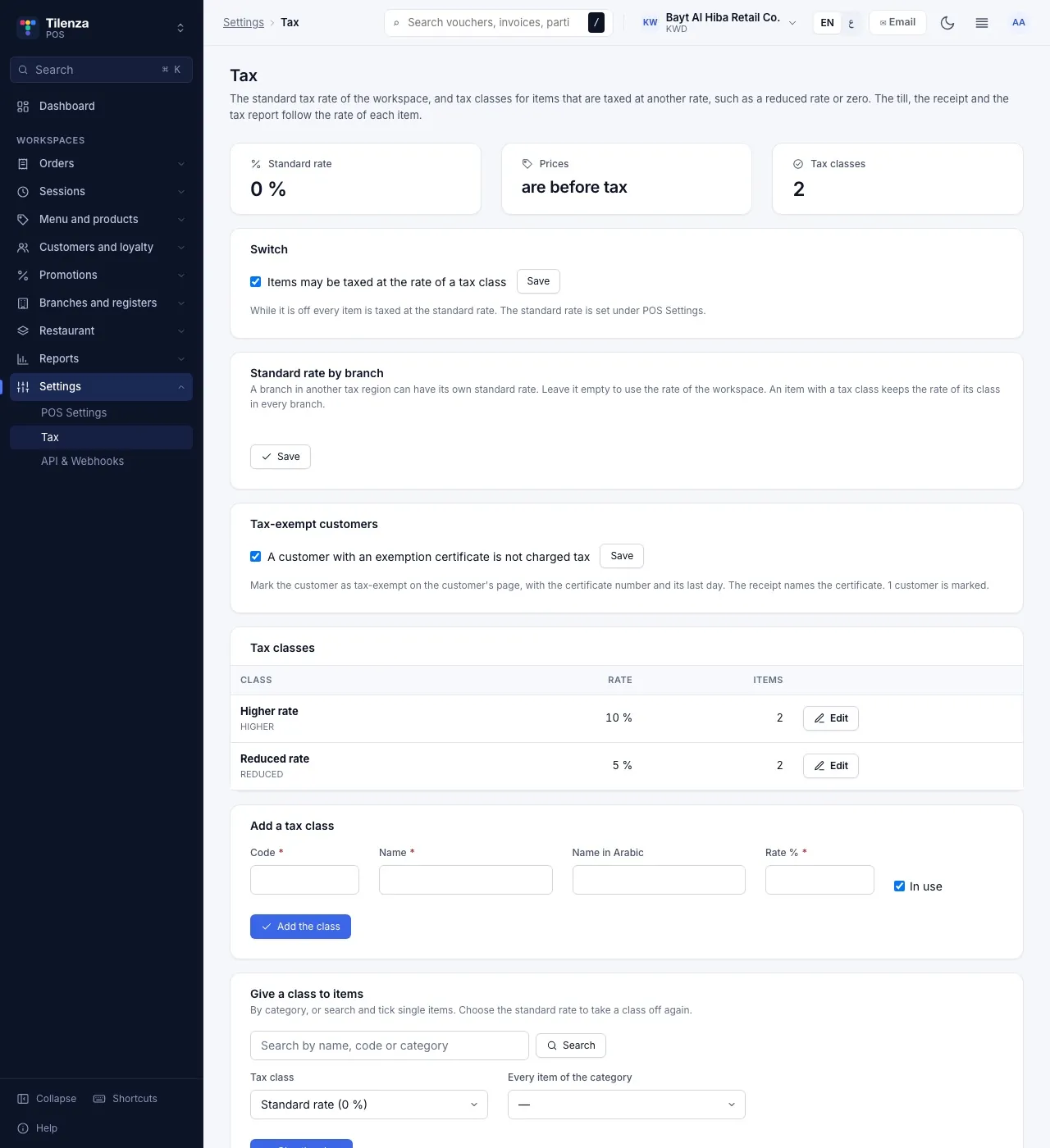
Most shops charge one tax rate on everything. Some goods are taxed differently: a reduced rate, a higher rate, or no tax at all. A tax class gives those items their own rate, and the till, the receipt and the tax report follow it.
The standard rate
Every item is taxed at the standard rate unless it has a tax class. The standard rate comes from the country of the workspace; to set your own, open Settings › POS Settings. The Tax screen shows the rate in use and whether your prices include tax.
Switch tax classes on
Open Settings › Tax, tick Items may be taxed at the rate of a tax class and press Save. While it is off every item is taxed at the standard rate; the classes you made are kept.
Add a tax class
- Under Add a tax class, type a short Code and a Name, for example Reduced rate.
- Type the Rate %. Zero is allowed, for goods that carry no tax.
- Press Add the class.
Edit changes the name or the rate. Untick In use to stop a class; its items go back to the standard rate.
Give a class to items
Under Give a class to items, choose the Tax class, then either choose a category under Every item of the category, or search and tick single items. Press Give the class. To take a class off again, choose Standard rate and give that.
At the till and on the receipt
The till taxes each line at the rate of its item. A sale with one tax rate shows one Tax line, as before. A sale with more than one shows a line for each rate.
The tax report
Open Reports › Reports and choose Tax by rate: for each rate, the sales before tax, the tax and the sales with tax, after discounts and refunds. Export it to file your tax return.
The customer's tax number
Open Customers and loyalty › Customers & Store Credit and choose the customer. Under Tax, type the Tax number and press Save. The full-page invoice of a sale to that customer prints it as the buyer's tax number.
Tax-exempt customers
Some customers pay no tax, for example an embassy or a charity with an exemption certificate.
- Open Settings › Tax, tick A customer with an exemption certificate is not charged tax and press Save.
- On the customer's page, under Tax, tick Tax-exempt, type the Certificate number and, if the certificate ends, the day under Valid until. Press Save.
On the till, choose the customer first. The customer button says Tax-exempt and the totals carry no tax. The receipt names the certificate. After the last day of the certificate the customer is charged tax again.
The Tax by rate report lists these sales in their own table, Tax-exempt sales, with the customer and the certificate number.
A branch with its own rate
Where branches are switched on, the Tax screen shows Standard rate by branch. Type a rate for a branch in another tax region and press Save; leave it empty to use the rate of the workspace. Items with a tax class keep the rate of their class in every branch.
Didn’t find what you need? Ask a person