Foreign currency cash and payment surcharges
Take cash in other currencies at a rate with the change in your own currency, and add a surcharge to the payment methods that cost you a fee.
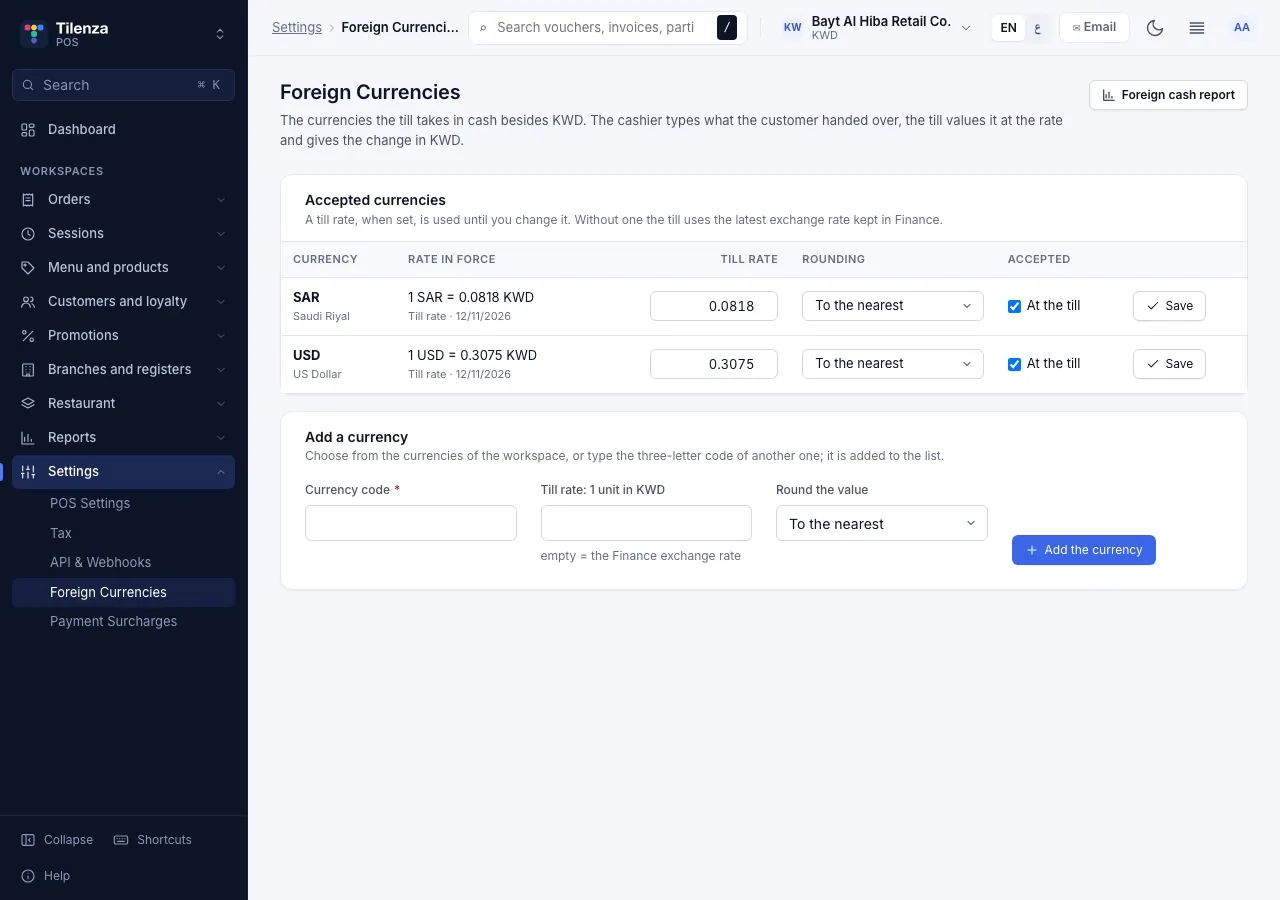
A customer can pay cash in another currency: the till values the notes at your rate and gives the change in your own currency. You can also add a surcharge to the payment methods that cost you a fee.
Switch them on
Open Settings › POS Settings. In the Payments card tick Foreign currency cash, Payment surcharge, or both, and save. Each tick adds a screen under Settings.
Choose the currencies
- Open Settings › Foreign Currencies.
- Under Add a currency, choose a currency of the workspace or type its three-letter code.
- Type the Till rate: what one unit is worth in your currency. Leave it empty to use the latest exchange rate kept in Finance.
- Choose how the value is rounded: to the nearest, down or up.
- Press Add the currency.
The list shows the rate in force for each currency, where it comes from and its date. Change a till rate there whenever the rate moves. A currency without a rate is not offered at the till.
Take foreign cash at the till
On the pay screen, choose the currency beside Cash and type what the customer handed over. The till shows what it is worth and the change. The change is always given in your own currency.
A customer can pay part in a foreign currency and the rest in cash or by card. The receipt and the digital receipt print the foreign amount and the rate.
Without a connection the till uses the rates of its last sync.
Count the drawer
Foreign notes are counted apart from your own currency. When you close the shift, type the amount counted of each currency. The X-report and the Z-report show, for each currency, what was taken, what it is worth, what was counted and the difference.
A refund is always paid in your own currency.
Add a surcharge to a payment method
- Open Settings › Payment Surcharges.
- For a method, choose Percentage or Fixed amount and type the value.
- A Minimum sale charges it only on sales of that total or more; a Cap is the most it can be on one sale. Both are optional.
- Tick Add tax if the surcharge is taxed, tick On and press Save.
Every method is off until you switch it on. On the pay screen the cashier types the amount paid with the method; the till shows the surcharge and the amount to charge before the sale is completed. The receipt prints the surcharge on its own line, and a refund gives it back in proportion to the goods returned.
Check the rules of your country before charging a surcharge: where it is not allowed, leave it off.
Reports
Reports › Foreign cash lists the cash taken in each currency by day, with the rates. Reports › Payment surcharges adds up the surcharge of each method.
Didn’t find what you need? Ask a person