Appointments, staff calendars and prepaid packages
Book customers with a member of staff inside working hours, follow each appointment to payment at the till, and sell packages of sessions that customers use visit by visit.
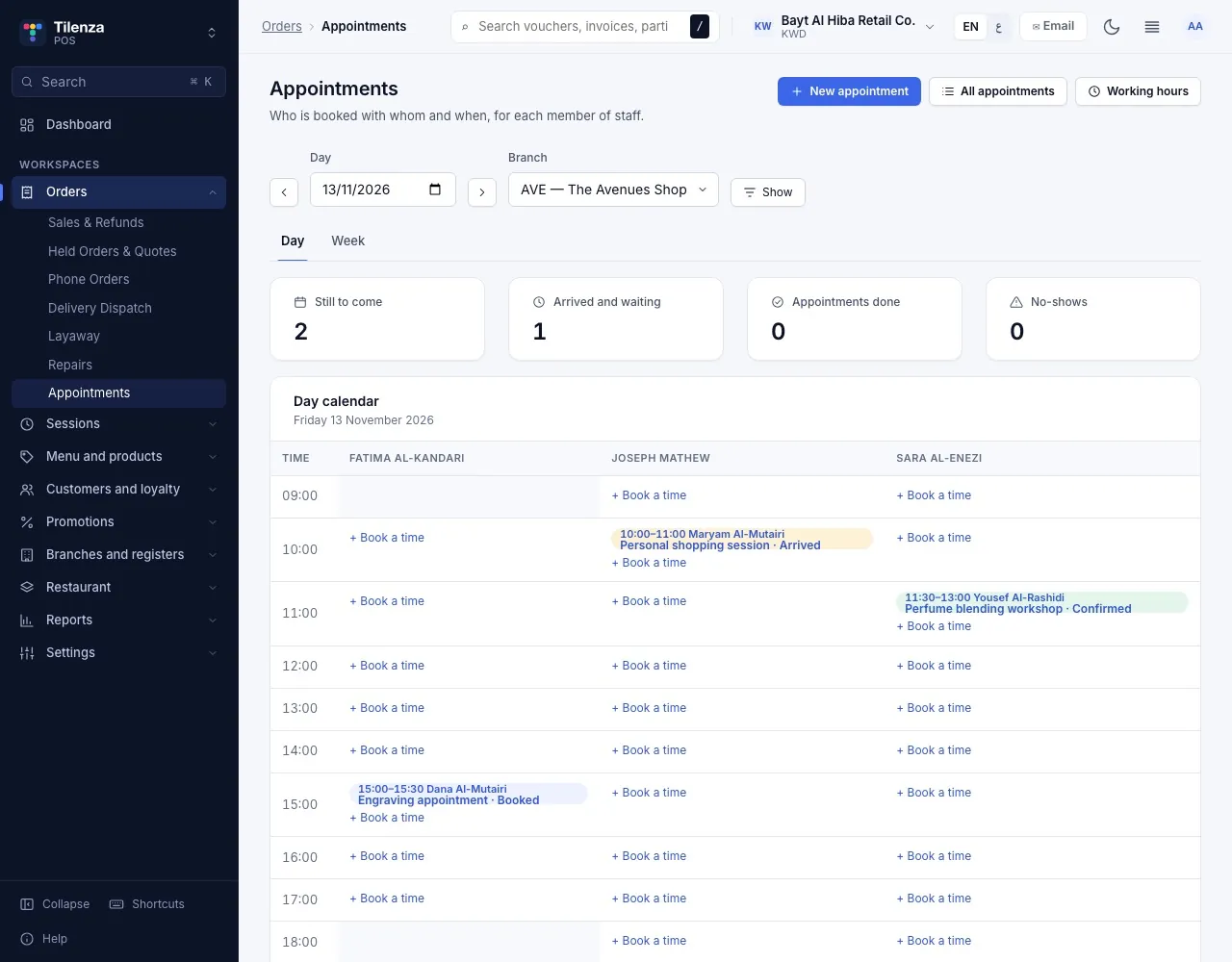
Appointments is for a business that sells time with a person: a salon, a clinic, a gym, a workshop or a tutor. It shows who is booked with whom and when, stops anyone being booked twice, and takes the payment at the till. Prepaid packages let a customer pay once for several sessions and use them visit by visit.
Switch it on
Open Settings › POS Settings. In the Services card tick Appointments and staff calendars, Prepaid packages of sessions, or both, and save. Appointments then appears under Orders and Prepaid Packages under Customers. The ticks also switch on service items, parked sales on the server and the customer file, which these screens need.
Services and staff
- On Menu & Products tick A service on each item you book, and type its Appointment length (minutes).
- On Cashiers & PINs tick Takes appointments for each person customers book with.
Working hours
Open Working hours from the Appointments screen.
- For the branch, tick the days it takes appointments and type the hours of each day. Breaks are typed as from-to, separated by commas, for example
13:00-14:00. - Each member of staff has a tab. With no day ticked the person follows the branch. Once a day is ticked they work only on the days ticked, inside the hours of the branch.
- Appointment options sets how often a start time falls (every 15 minutes, for example) and the length used for a service that has none.
Until the branch has hours nothing can be booked.
Book an appointment
- Open Appointments and press New appointment, or press Book a time in a free hour of the calendar.
- Type the customer's phone and name. The phone of a customer on file links the appointment to that customer and to their packages.
- Choose the service and the member of staff, or leave Anyone free: the first free person is taken.
- Choose the day and the start time, then press Book the appointment.
Find a free time lists the free start times of a day for a service, with one person or with anyone. Press a time to put it in the form.
A booking is refused when the branch is closed, the person is off, the time is outside their hours or in a break, or the person already has an appointment at that time.
The calendar
The Day view has a row for each hour and a column for each member of staff. The Week view has a row for each day. Each appointment shows its time, the customer, the service and its state; press it to open it. All appointments is the list, with tabs by state, a period, the member of staff and a search by number, name or phone.
Follow the appointment
On the appointment press Confirm the appointment when the customer confirms and The customer has arrived when they come in. Once the start time has passed, Mark as no-show frees the time. Cancel the appointment keeps it on file and frees the time; Book it again brings back a cancelled or missed appointment when the person is still free.
Take payment
On the day of the appointment press Take payment at the till. The appointment becomes a held order with the service; the cashier recalls it from the held orders on the till and takes the payment as for any sale. When the sale is paid the appointment is done. When salespeople are on, the member of staff of the appointment is the salesperson of the sale.
For a free service, or one already paid in an ordinary sale, press Mark as done and say why.
Prepaid packages
A package is an item sold at the till that gives the customer a number of sessions of one service.
- On Menu & Products add the item, give it its price and tick A service, so that selling it takes no stock.
- Open Prepaid Packages. Under Packages on sale choose the item, the service a session pays for, the number of sessions and how many days it is valid, and press Add the package.
The cashier then sells the item like any other, with the customer chosen on the sale. The customer gets the sessions, and they expire after the valid days. A package sold without a customer is not lost: it waits under Waiting for a customer until you open it and type the customer's phone.
Give a package by hand is for balances you bring from another system: no sale is made and no money is taken.
Use a session
- For an appointment: on the appointment choose the customer's package under Pay with a session of and press Use one session. The appointment is done and one session is taken.
- Without an appointment: open the customer's package and press Use one session.
The package page shows what was sold, used and left, the expiry date and the History with who and when. Give back undoes a session taken by mistake.
The money is taken when the package is sold. Using a session makes no sale.
Refunds
Refund the sale of the package on Sales & Refunds as usual. The sessions not yet used are removed from the customer; the ones already used stay in the history. Voiding the sale removes every session that is left.
Reports
With reports on, Reports has Appointments by state and member of staff, with the no-show rate, and Prepaid packages: sold and used in the period, and the sessions customers still hold with their value.
Didn’t find what you need? Ask a person