Staff hours, sales targets and tip sharing
A time clock with a PIN, the hours of each person by day and week, a monthly target for each salesperson and a fair split of the tips.
Three tools for the people who work at the till: a time clock, a monthly sales target and a fair split of the tips. Each has its own switch, and each is a record to read and pay from. Nothing is posted to the books, and HR attendance and payroll are not touched.
Switch them on
Open POS Settings. In Terminal options, tick what you need and save:
- Time clock adds Staff Hours under Branches and registers.
- Sales targets adds Sales Targets under Branches and registers, and a Targets report.
- Tip sharing adds the Tip sharing report. It needs tips to be taken, so tick the tips line as well.
Everyone who clocks in needs a PIN. Give it on Cashiers & PINs; it is the same PIN as at the till.
Clock in and out
- Open the clock on a tablet near the door: the links are under the Time clock tick on POS Settings and at the foot of Staff Hours, one for each register.
- Press your name, type your PIN and press Clock in.
- Press Start a break when you stop and End the break when you are back.
- Press Clock out when you leave. The clock shows the hours you worked, with the breaks taken out.
A person can be clocked in only once. Five wrong PINs lock the person for a few minutes, as at the till; a supervisor unlocks them on Cashiers & PINs.
Read and correct the hours
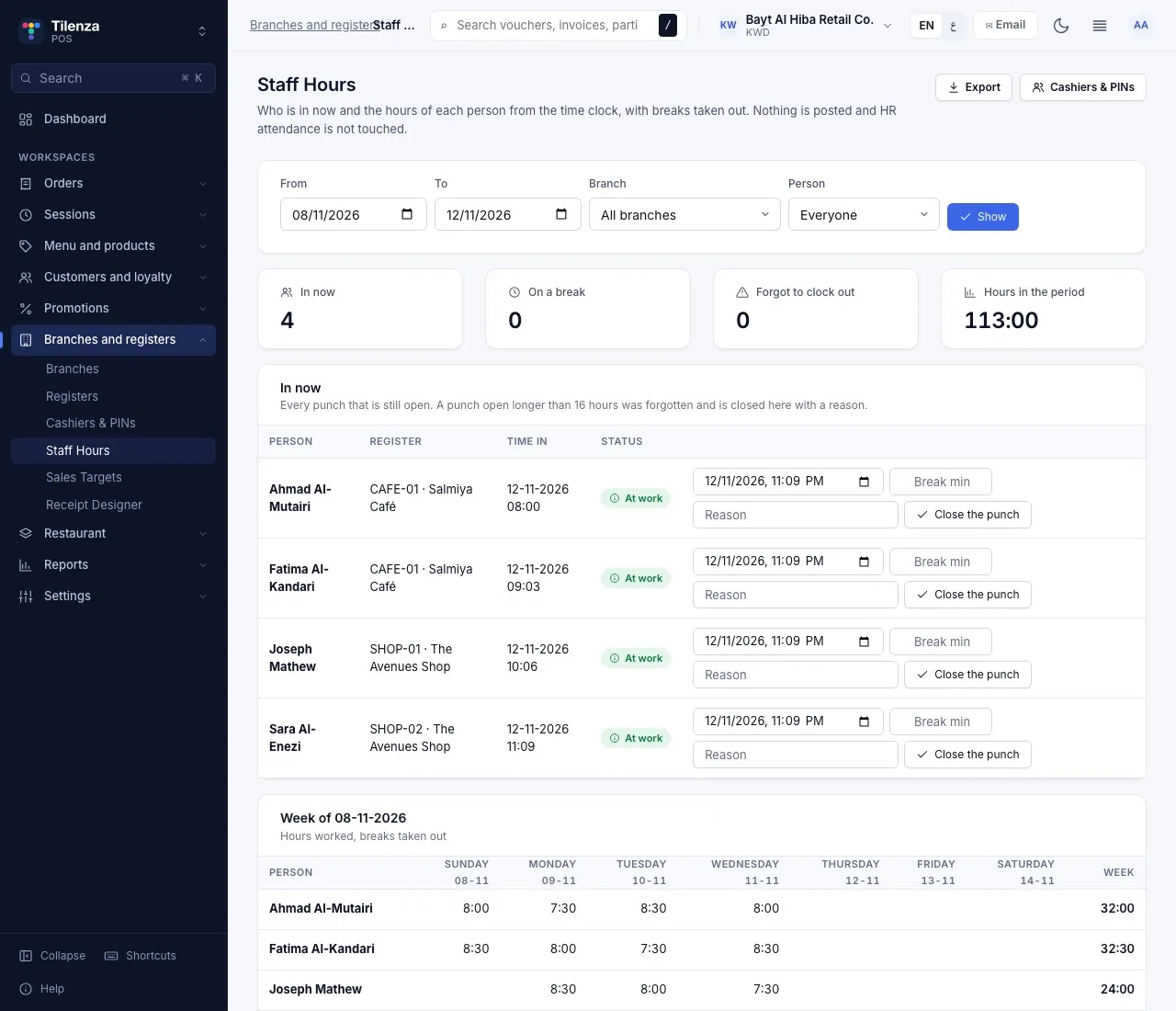
Open Staff Hours. The tiles show who is in now, who is on a break and the hours of the period. In now lists every open punch. Below, one table for each week shows the hours of each person day by day and the total of the week. Punches lists every clock-in with its register, its breaks and its hours.
When someone forgets to clock out, the punch stays open. After the longest shift you set (16 hours at first) the clock stops accepting it and tells the person to see a supervisor. Close it under In now: type the time the person really left, the break minutes and the reason.
A supervisor can also correct the times of any punch, cancel a punch made by mistake and add a punch that was missed. Each of these needs a reason, and the screen keeps who made the change. A cancelled punch stays on file and counts no hours.
Export saves the punches of the period as a file for a spreadsheet. Times are on the clock of the workspace, and the week starts on the first working day of your country unless you choose another day under Options.
Set sales targets
- Open Sales Targets and choose the month.
- Type a target for each person, and for each branch if you have several.
- Press Save the targets. Copy from the month before fills the rows that are still empty.
The screen shows what each person has sold so far and the percentage of the target. A sale counts for the salesperson named on it; when the salesperson switch is off, it counts for the cashier who rang it up. Sales are counted before tax, after discounts and refunds.
The Commission report gains three columns, Target, Achieved and Of target. The Targets report shows every month of a period, for each person and each branch, with what is left to sell.
Share the tips
Open Reports and choose Tip sharing. Pick the period and one of the rules under Share the tips:
- Equally between those who worked: the tips of each day are shared equally between the people who clocked in at that branch that day. Without the time clock, they are shared between the people who rang up a sale that day.
- By hours worked: the tips of each day are shared by the hours each person worked that day. This rule needs the time clock.
- Each keeps their own: each person keeps the tips on the sales they served.
The first table is what to pay each person; the second shows the tips of each day and how they were shared. The shares always add up to the tips taken, to the smallest coin. Export the report to pay from it.
Didn’t find what you need? Ask a person