Repairs and work orders
Take an item in for repair, estimate labour and parts, follow the job to collection and take the payment at the till.
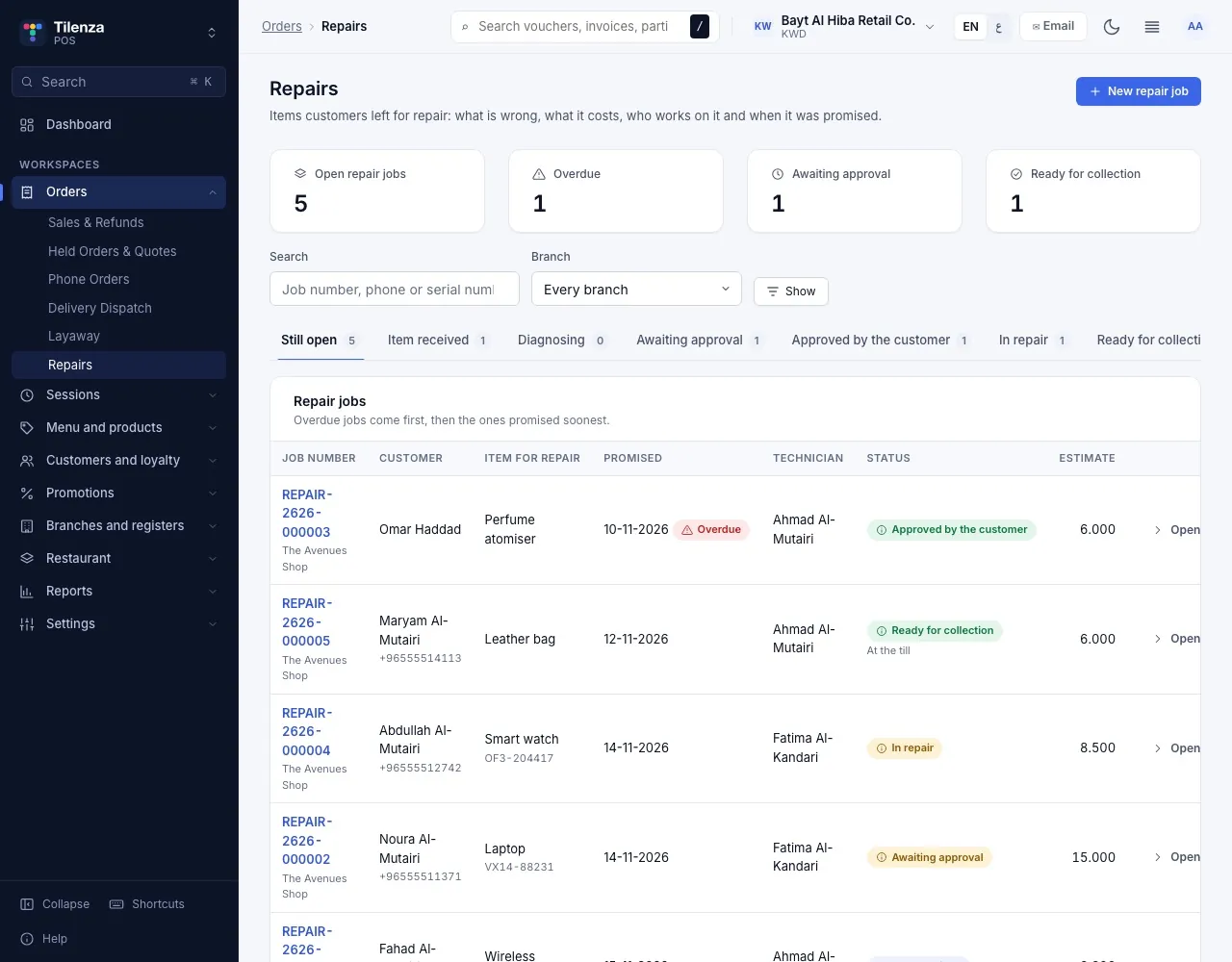
Repairs keeps a work order for every item a customer leaves with you: whose it is, what is wrong, what it will cost, who works on it, when it was promised, and that it was paid for before it left.
Switch it on
Open Settings › POS Settings. In Terminal options, tick Repairs and work orders and save. Repairs then appears under Orders. The tick also parks sales on the server, which the till needs to recall a finished job.
Labour is charged as a service item. In the same card tick Service items: sold without stock, then on Menu & Products tick A service on the items you charge labour with, for example an hour of labour or a diagnosis fee.
Take an item in
- Open Repairs and press New repair job.
- Type the customer's phone and name. The phone of a customer on file links the job to that customer.
- Describe the item, its brand, model and serial number, the fault as the customer tells it, the accessories left with it and its condition.
- Choose the promised date and the technician, then press Open the job.
- Print the Job ticket for the customer and the Item label for the item.
When serial numbers at the sale are on and the serial number was sold here, the job shows the sale and whether the item is still under warranty.
Estimate and approval
On the job, add labour and parts to the Estimate. Prices come from the price list, with tax, exactly as the till will charge them. Labour is a service item; its quantity is the hours or the number of times. A price typed for one job is not possible, because the till prices a job from the price list.
Press Ask for approval, and once the customer agrees press Record the approval with who approved and how. Revise the estimate takes an approved job back when the work turns out different.
A job with nothing to charge, or for an item under warranty, can start without an approval.
Follow the job
Each job has a button for its next step: Start the diagnosis, Ask for approval, Start the repair, Mark as ready and Mark as collected. The Timeline keeps every step with who took it and when. Cancel the job needs a reason; the job stays on file.
The list shows overdue jobs first: the promised date has passed and the item is not ready yet. Search by job number, phone or serial number, and use the tabs to see one status.
Payment and collection
When the job is ready and the customer comes, press Send to the till. The job becomes a held order with its labour and parts; the cashier recalls it on the till and takes the payment as for any sale, and the parts leave stock with the sale. A held order expires after the hours set on Held Orders & Quotes; the job can then be sent again.
For a warranty repair, press Close at no charge and give the reason instead. No sale is made, so take the parts out of stock in Inventory.
Once the job is paid or closed at no charge, press Mark as collected when the customer takes the item.
Didn’t find what you need? Ask a person