Make a sale on the till
Sign in with a PIN, add items, take payment and print the receipt.
The till opens full screen on a tablet or a computer and keeps working without internet. Sales made offline are sent when the connection returns.
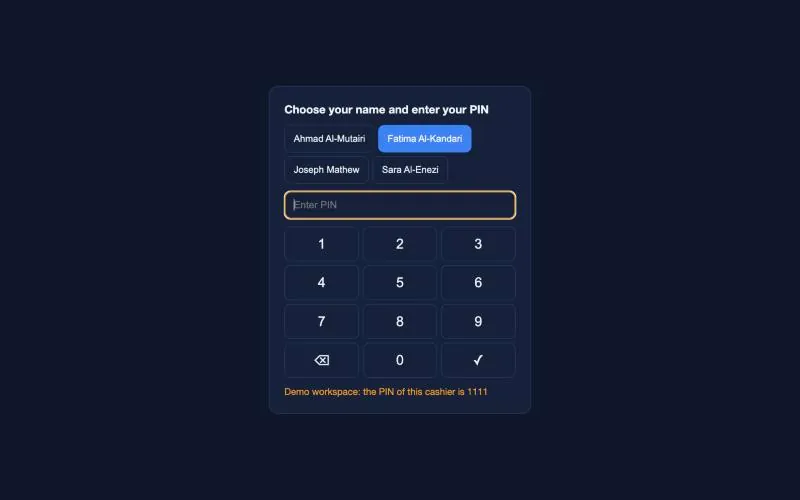
1. Sign in
Open Sessions › Terminal, or press Open the terminal on the dashboard. Choose your name and type your PIN.
2. Add the items
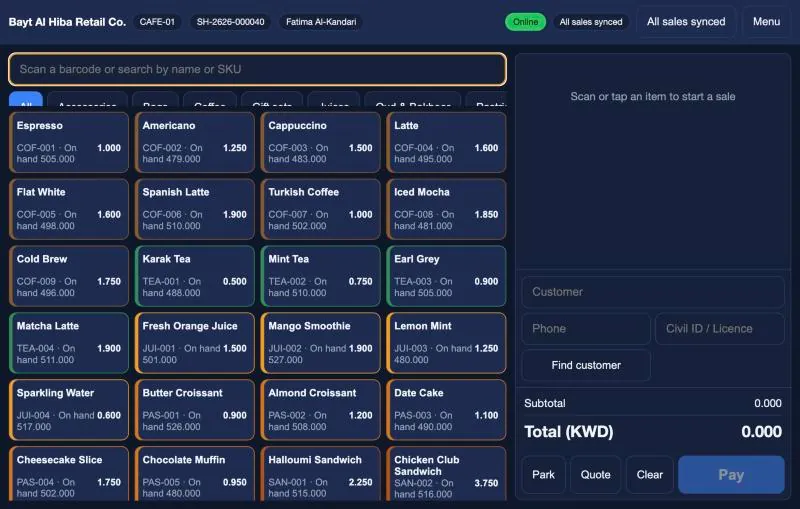
- Scan a barcode, or tap an item's button. Type in the search box to find an item by name or code.
- Tap a line in the basket to change the quantity, add a note or give a discount.
- Choose a customer when the sale should earn points, use store credit or carry a name on the invoice.
Offers that apply to the basket are taken off by themselves and shown on their own line.
3. Take payment
- Press Pay. The total is shown with the ways to pay that are switched on: cash, the debit network, card, payment link, store credit, gift card, loyalty points.
- For cash, type what the customer gave; the till shows the change.
- For a card or the debit network, type the reference from the card machine.
- A sale can be split over several ways to pay.
4. The receipt
The receipt prints in English and Arabic with the date in both calendars. From Orders › Sales & Refunds any receipt can be printed again, as a gift receipt without prices, or as a full-page invoice with the buyer's name and tax number.
Things the till can do when switched on
| Feature | What it does |
|---|---|
| Hold | Park a basket and bring it back later |
| Training mode | Practise without recording anything |
| Open price | Type the price of an item at the sale |
| Restricted items | Ask for the customer's age, or limit the quantity per sale |
| Warranty | Print the last day of the warranty on the receipt |
These are switched on under Settings. See Switch features on and off.
Didn’t find what you need? Ask a person