Table reservations and the waitlist
Take bookings by table and time, follow them through the day and keep a waitlist for walk-in guests.
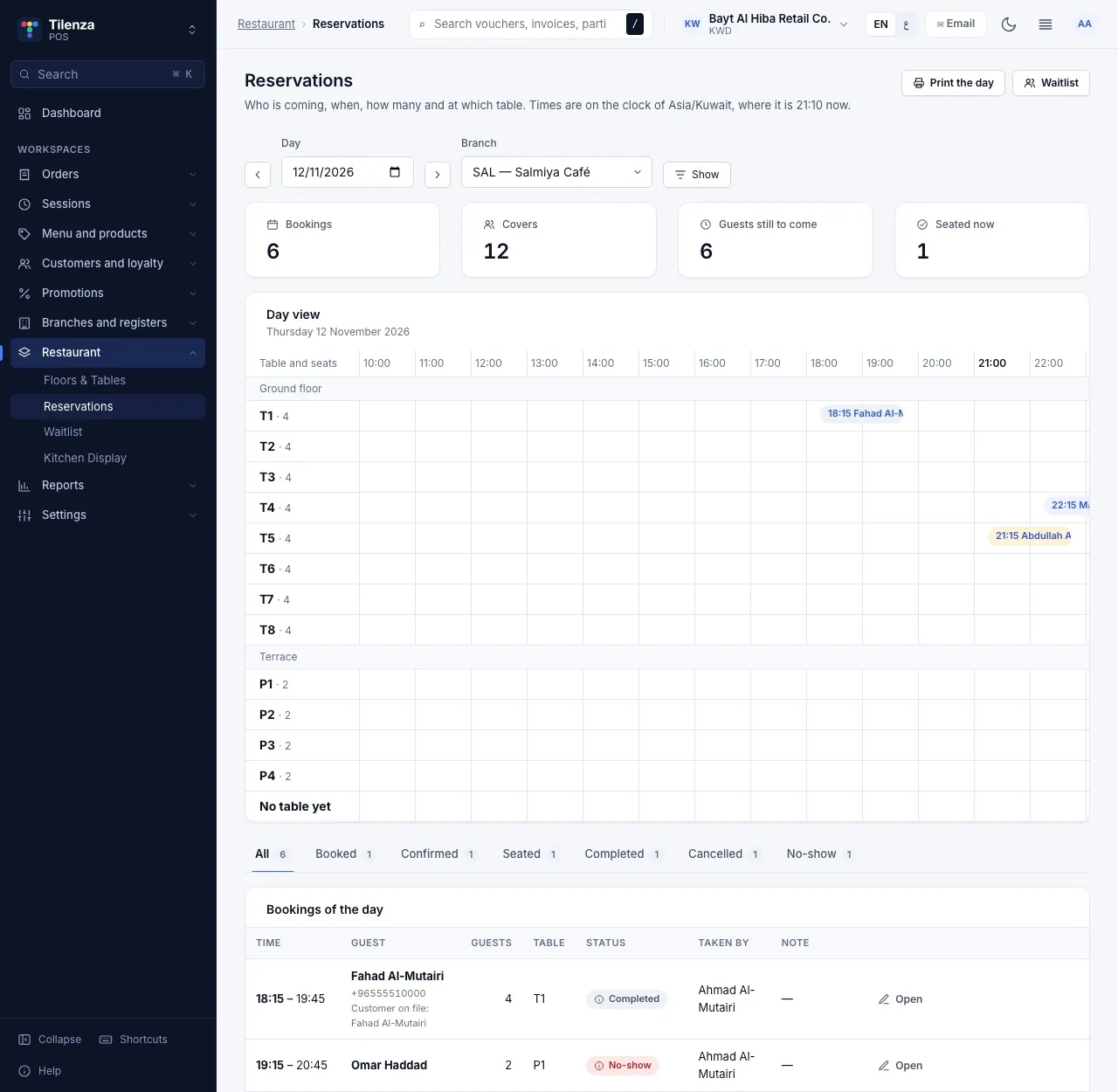
Reservations keeps the bookings of a restaurant or café: who is coming, when, how many guests and at which table. The Waitlist keeps the parties that arrive without a booking when the room is full.
Switch it on
Open Settings › POS Settings. In Floors and tables, tick Orders are kept on tables and Table reservations and a waitlist, then save. Reservations and Waitlist then appear under Restaurant.
Reservations need floors and tables. Switching tables off switches reservations off too; the bookings are kept.
Take a booking
- Open Reservations and choose the day, and the branch if you have several.
- Under New booking, type the guest's name, the phone, the number of guests, the day and the time.
- Choose a table, or leave Decide later and choose it when the party arrives.
- Press Take the booking.
A booking holds its table from its time for its length. The screen refuses a table that is already booked for an overlapping time, a party larger than the seats of the table, and a time that has passed. Two bookings may follow each other on one table.
When the phone belongs to a customer on file, the booking is linked to that customer.
Read the day
The tiles show the bookings of the day, the covers (the guests of every booking that was not cancelled and did not fail to come), the guests still to come and the parties seated now.
The Day view has a row for each table and the hours across. Each booking is a bar from its start to its end, in the colour of its status. Bookings without a table are in the row No table yet. Press a bar to open the booking.
The tabs above the list filter by status. Print the day prints the list in time order for the host's desk.
Follow a booking
Each booking in the list has a button for every step its status allows.
- Confirm when the guest has confirmed.
- Seat the party when the guests arrive. Choose the table then if it was left open. A table with an open order at the till cannot be chosen.
- Complete the visit when the guests have left. The table is free for the next booking.
- Cancel the booking, with a reason if you open the booking first.
- Mark as no-show when the guests did not come. It is possible only after the late minutes you set.
- Reopen brings back a booking that was cancelled or marked no-show by mistake, while its time has not ended.
Cancelled bookings and no-shows stay on file.
Seating a party changes the booking only. On the till the table shows as taken as soon as the waiter saves the first order on it.
The waitlist
- Open Waitlist and add the party under Add a party: name, phone, guests and the wait you quoted.
- The list shows the parties in the order they arrived, with the minutes each has waited.
- Press Table is ready when you have told the party.
- Choose a free table and press Seat the party, or Left without a table when the party has gone.
A party seated from the waitlist also shows on the day view of Reservations, so nobody else is booked or seated on that table meanwhile. The tiles show how many are waiting and the average wait today.
Options
At the foot of Reservations, set the usual length of a booking, how often a booking may start (every 15 minutes, for example), how many minutes late a party may be before it can be marked no-show, and the largest party.
Times follow the time zone of the workspace, the one shown on the first page of Menus.
Didn’t find what you need? Ask a person