Scan with a phone or a handheld
Receive, put away, pick, count and transfer by scanning barcodes, also without a connection.
A phone or a handheld scanner does the warehouse work at the shelf: receive, put away, pick, count and transfer. It keeps working without a connection and sends what was done when the connection is back.
Switch it on
Open Operations › Scanning and press Switch on scanning. Stock control must be on first.
Put the scanner on a device
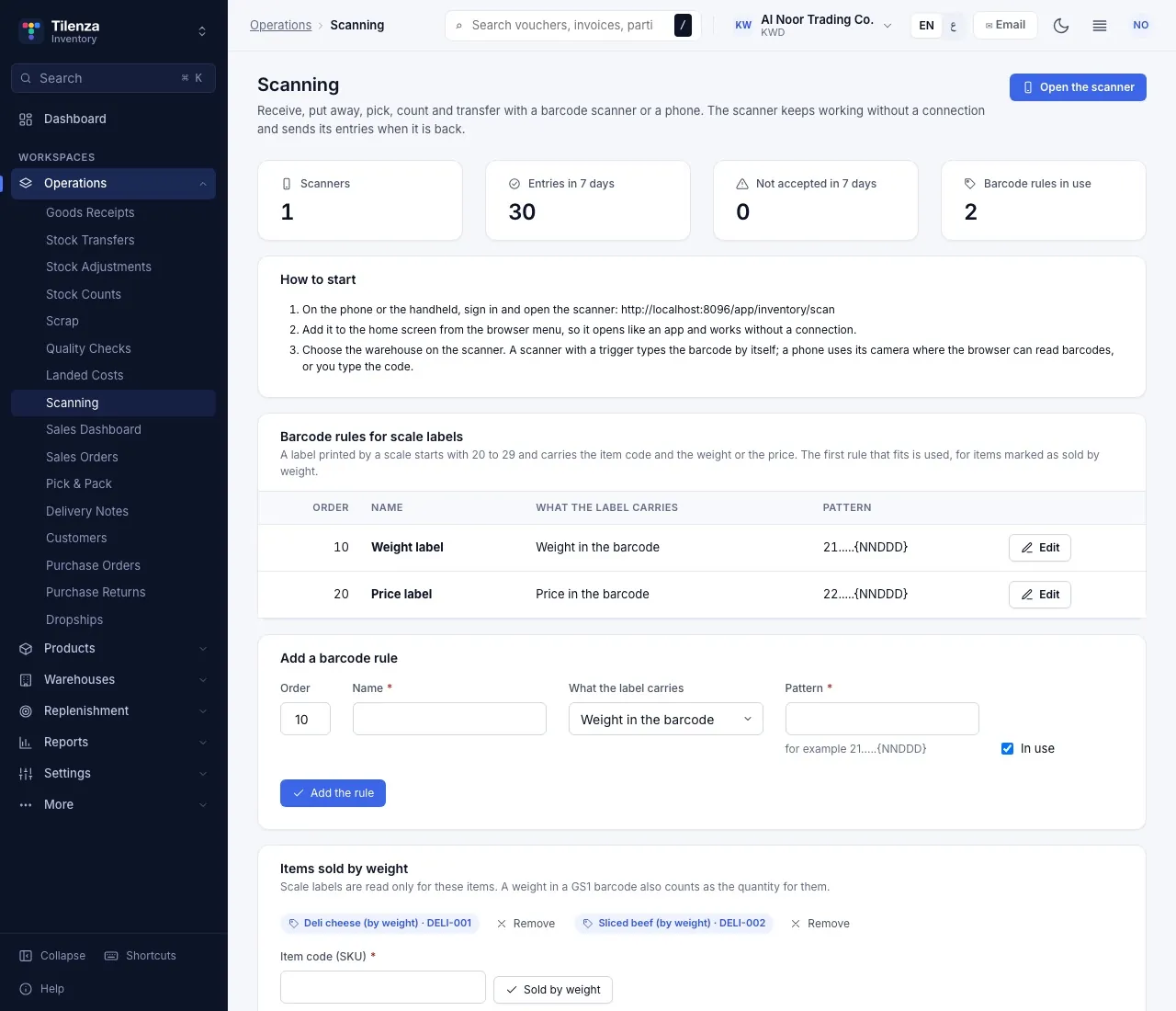
- On the phone or the handheld, sign in and press Open the scanner.
- Add it to the home screen from the browser menu. It then opens like an app and works without a connection.
- Choose the Warehouse on the scanner and type a name under Name of this scanner.
A handheld with a trigger types the barcode by itself. A phone uses its camera where the browser can read barcodes; otherwise type the code and press Add.
What you can do
- Receive: choose the purchase order and scan the goods. A GS1 barcode fills in the lot and the expiry date.
- Put away and Pick: choose the operation, scan each item, scan the shelf it goes to, then press Validate.
- Count: scan a shelf, or just scan items to count the warehouse, then press Complete the count. The expected quantity is not shown.
- Transfer: choose the warehouse the goods go to, scan them, then press Ship the transfer.
- Move: scan the shelf the goods leave, the item, and the shelf they go to.
- Look up: scan anything to see what it is.
Without a connection
What you scan is kept on the device. Scanner log shows what is waiting, what was sent and what was not accepted, with the reason. Nothing is applied twice, even when the same work is sent again.
Barcodes it reads
- The barcodes and codes of your items, pack barcodes and unit barcodes.
- GS1 barcodes with the item number, lot, expiry date, serial number, quantity and weight.
- Labels from a scale, for the items listed under Items sold by weight. Barcode rules for scale labels says where the item code and the weight or the price sit in the label.
- Location barcodes and package numbers.
Labels
Under Labels, print item, lot and location labels on a sheet, or download a Zebra file (ZPL). A lot label carries the item, the lot and the expiry date in one barcode.
Didn’t find what you need? Ask a person