Promise a ship day and allocate stock
The day an item can ship from each warehouse, and who gets the stock when it arrives.
Tell a customer the day an order can ship before you take it, and decide who gets the stock when it arrives.
Switch it on
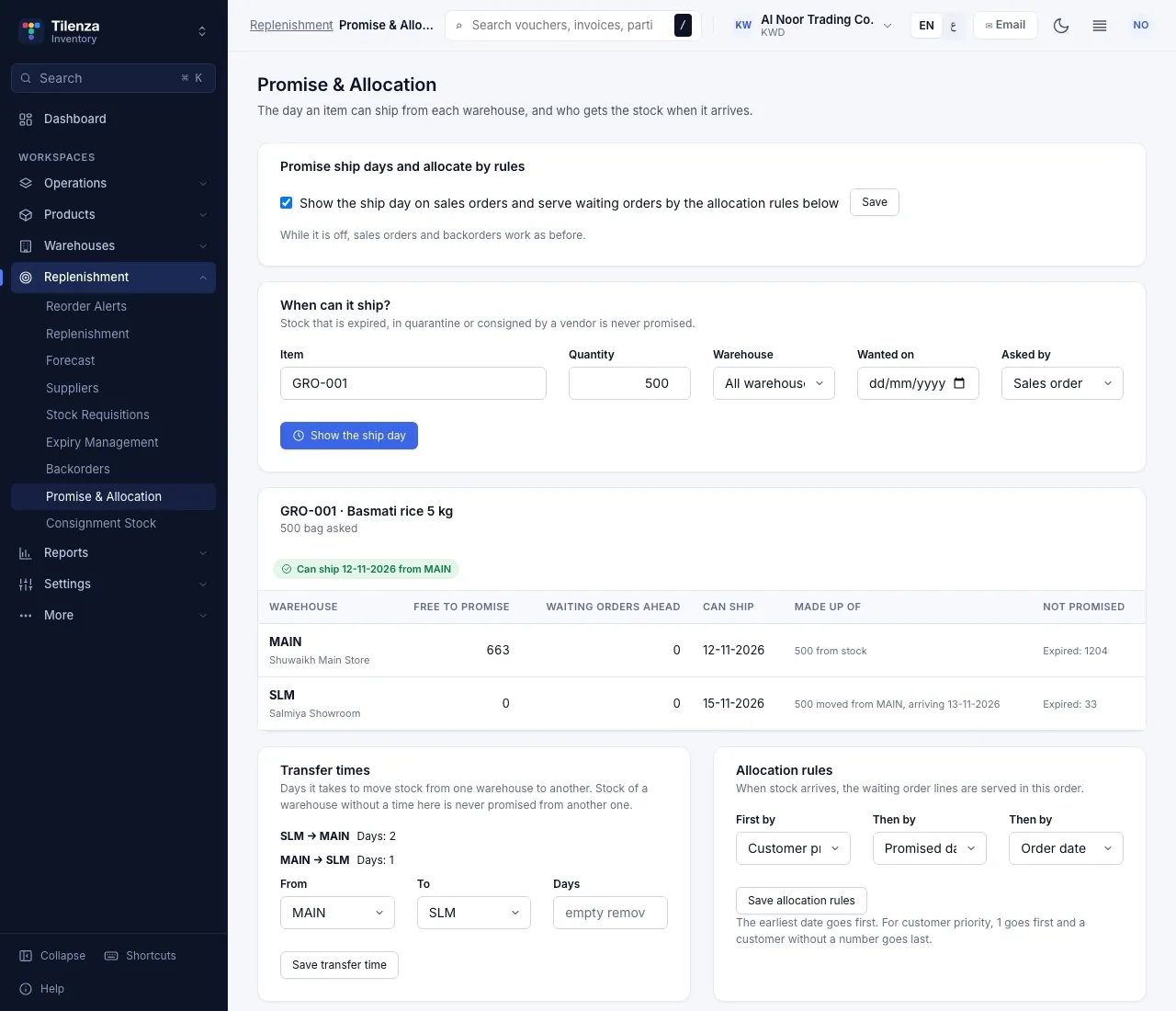
Open Replenishment › Promise & Allocation, tick Show the ship day on sales orders and serve waiting orders by the allocation rules below and press Save. While it is off, sales orders and backorders work as before.
Ask when an item can ship
- Under When can it ship?, type the SKU, the barcode or part of the name, and the quantity.
- Choose a warehouse to ask about one only, and a day under Wanted on to be warned when the ship day is later.
- Press Show the ship day. The answer names the earliest day and the warehouse, and lists every warehouse with what the quantity is made up of.
The day is counted like this, for each warehouse:
- the stock that is free today, which is the stock on hand less what is reserved;
- then the purchase orders that are approved, on their expected day, after the orders that already wait for that stock;
- then stock from another warehouse, after the transfer time between the two.
Stock that is expired, in quarantine or consigned by a vendor is never promised. A purchase order without an expected day promises nothing, so fill the day in. A ship day that falls on a weekend moves to the next working day of your country. Transfer times count calendar days.
Transfer times
Under Transfer times, choose the warehouse the stock leaves, the warehouse it goes to and the number of days, and press Save transfer time. Each direction has its own time. Stock of a warehouse without a time is never promised from another one. Leave the days empty to remove a time.
Allocation rules
When stock arrives, it is reserved for the order lines that wait. Under Allocation rules, choose what decides who goes first, and then what decides between two orders that are equal:
- Promised date: the earliest promised date first.
- Order date: the oldest order first.
- Customer priority: the customer with the lowest number first. A customer without a number goes last.
Give a customer a number under Customer priority. Leave the number empty to remove it.
The same order is used by Replenishment › Backorders, and the day in its Can ship column comes from the promise.
Hold stock back for a channel
A shop that also takes sales orders can keep part of its stock for the till or for the online store. Under Stock held back for a channel, choose the warehouse and the channel, type the share as a percentage and press Save held-back share. That share of the stock that can be sold in the warehouse is not reserved for sales orders and is not promised. Leave the share empty to remove it.
On a sales order
- On a new sales order, the ship day and the warehouse show under each line once you choose the item and the quantity.
- On the order page, a draft shows the day for each line, and a confirmed order shows it for each line that still waits for stock.
- Later than the promised date warns you when the customer asked for an earlier day.
Didn’t find what you need? Ask a person