Take goods back from a customer
Approve a return, receive and inspect the goods, put them back on the shelf or scrap them, and credit the customer.
A customer sends goods back. One return carries the whole way: you approve it, the warehouse receives and inspects the goods, each line goes back on the shelf, is scrapped or is sent back, and the customer is credited.
Switch it on
Open Operations › Customer Returns and press Switch on customer returns. Until then nothing in Inventory changes.
The screen lists every return, with a tab for each state. Under Return reasons you add your own reasons and switch off the ones you do not use.
Open a return
- Under New return, choose the delivered sales order or the delivered order of the online shop, and press Choose the lines.
- The screen lists what was delivered, one row for each lot. Type the quantity that comes back and choose the reason. You cannot return more than was delivered less what was already returned.
- Press Request the return. The return gets its number and waits for approval.
Kits, bundles and lines the supplier shipped straight to the customer are not offered. A line that moved no stock, such as a service, can be returned for credit only.
Approve or refuse
Open the return and press Approve the return, or type why and press Refuse. An approved return can still be refused until the goods arrive. Return slip prints the paper that travels with the goods.
Receive the goods
- On the approved return, type what arrived on each line. For an item tracked by serial number, type the serial numbers that came back; they must be among those the delivery took out.
- Press Receive the goods. The stock comes back at the cost it left with, in the lot it left from.
From the receipt until the inspection the goods are held for their return. They count as reserved: no waiting order can take them, and they cannot be sold, issued or moved by mistake. The return shows Held for inspection with the quantity.
Where the warehouse uses locations and Quality Checks is on, the goods wait in the quality place until they are inspected, so nobody picks them by mistake.
Inspect
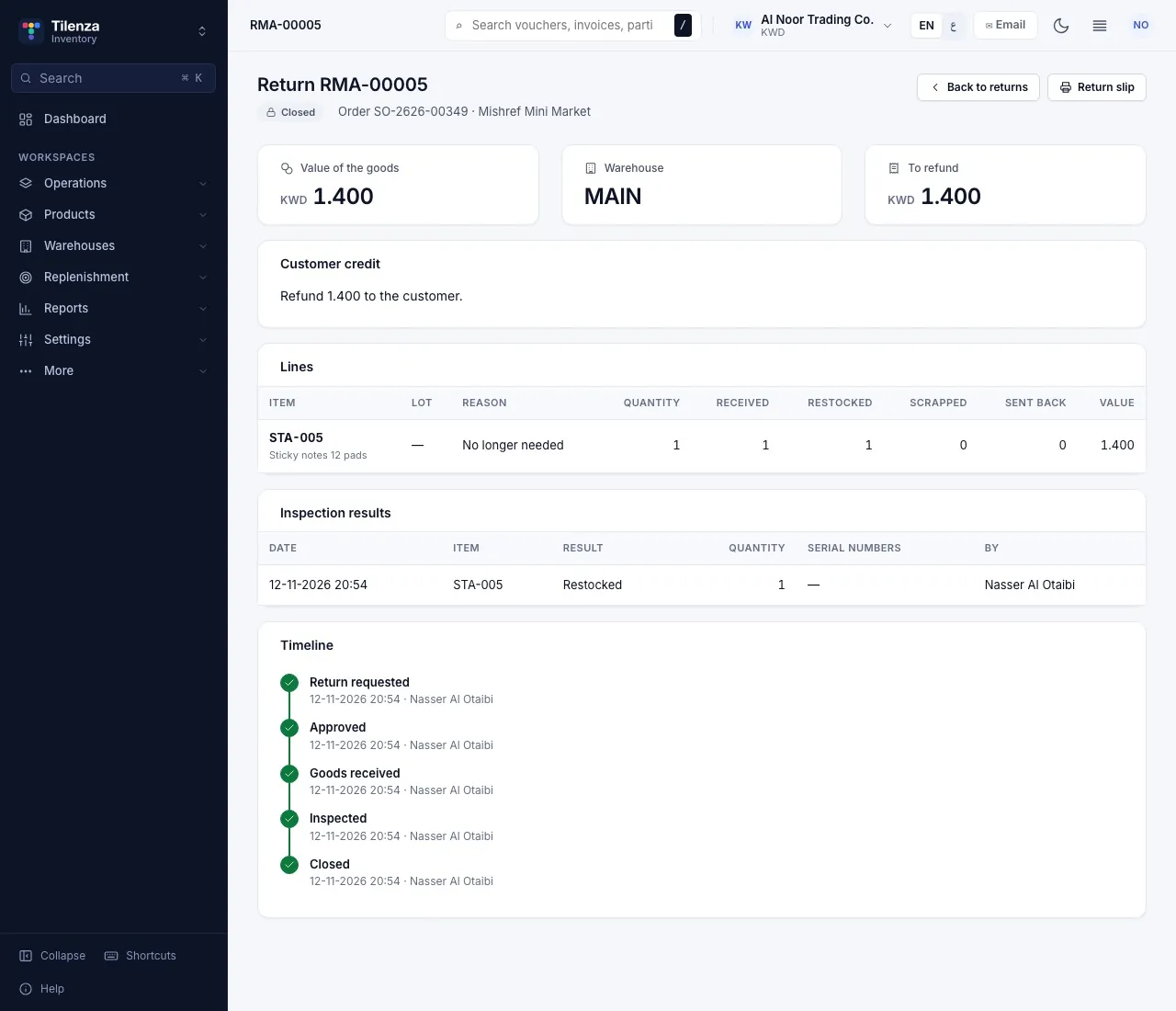
For each line, type how much is restocked, how much is scrapped and how much goes back to the customer. A line can be decided in parts, today and tomorrow.
- Restock puts the goods back on the shelf.
- Scrap needs a reason and writes the goods off, as on the Scrap screen.
- Back to the customer takes the goods out again. That quantity is not credited.
Restocked goods become free stock, and orders that wait for the item can then reserve them. Scrapped goods and goods sent back leave stock without ever being free, so a returned piece can always be scrapped, even when orders have reserved everything else of the item.
Held for inspection
Held for inspection, at the top of the returns screen, lists the returns that still hold goods, the oldest first, with the days each one has waited. Type a number of days to see only the returns that have waited at least that long.
The hold ends when the goods are inspected. If goods must be freed before that, a person who may approve returns types the reason and presses Release the hold. The goods are then free stock again, the return still waits for its inspection, and the reason stays on the return.
Close and credit
When every line is decided, press Close the return. What was restocked or scrapped is credited once.
- Where the order was invoiced in Finance, a credit note is drafted with the same prices, discounts and tax as the invoice. It stays a draft until the accountant posts it.
- Otherwise the return shows the amount to refund.
The report
Returns report shows what came back in a period: by reason, and by item with how much is still held for inspection and how much was restocked, scrapped and sent back.
Didn’t find what you need? Ask a person