Count on a schedule, blind, with a second count and approval
Rules that open the counts that are due, hide the expected quantity from the counter, send a large difference to a second person and keep it for approval.
Stock counts that open by themselves on the days you choose. The counter does not see the quantity the system expects, a large difference is counted again by another person, and what still differs waits for a manager.
Switch it on
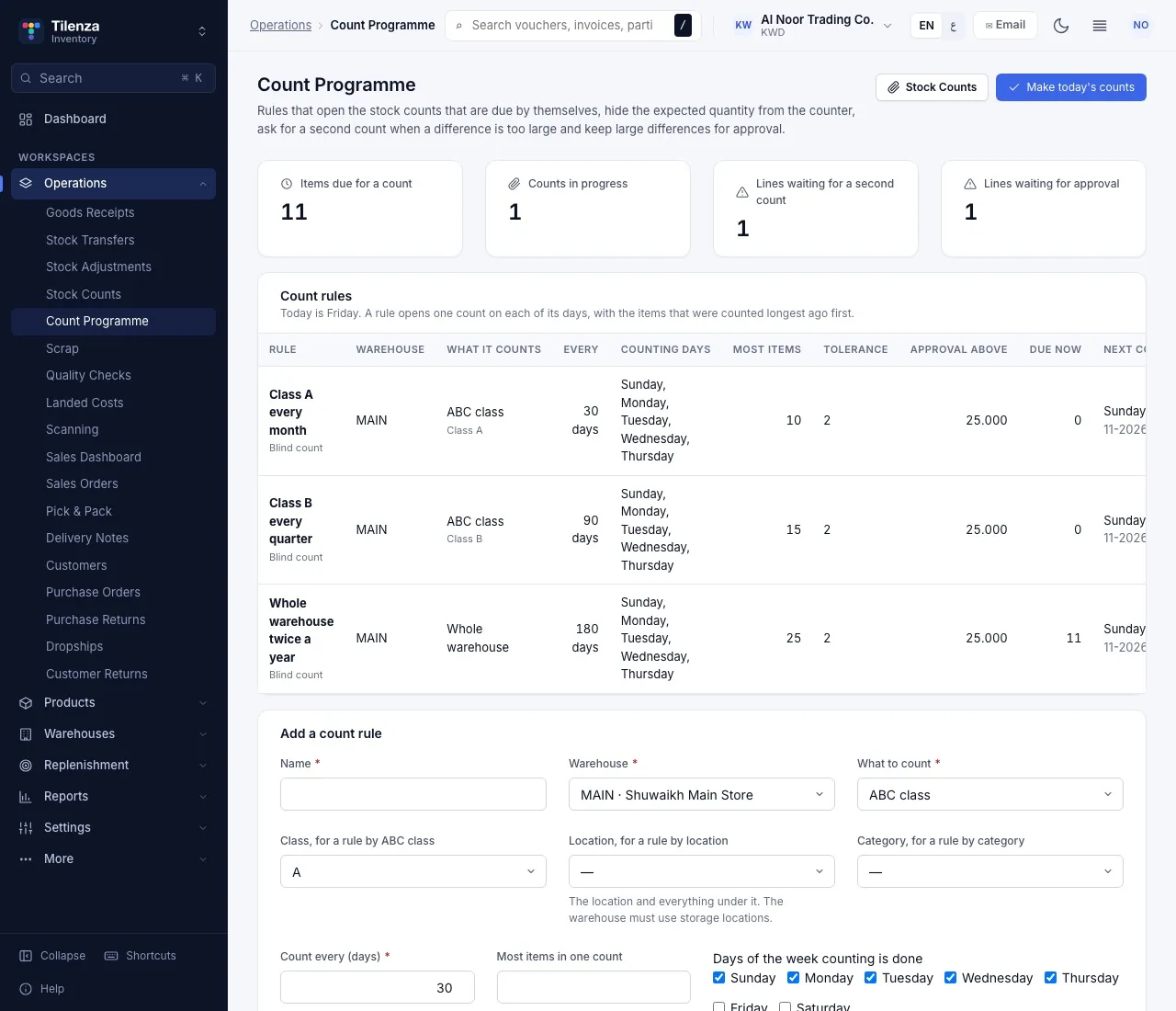
Open Operations › Count Programme and press Switch on the count programme. Counts you open by hand under Stock Counts keep working as before.
Add a rule
A rule says what to count and how often, for one warehouse.
- Under Add a count rule, type a name and choose the warehouse.
- Choose What to count: an ABC class, a location and everything under it, a category, or the whole warehouse. The class of an item comes from the ABC report under Stock Reports.
- Type Count every (days), for example 30 for class A, 90 for class B and 180 for class C.
- Tick the days of the week counting is done, and type the most items in one count so that the count of a day stays small.
- Type the tolerance and the approval limit, explained below, and press Add the rule.
Change the rule opens a rule again. Untick In use to pause it.
The counts of the day
Every morning the programme opens one count for each rule on its counting days, with the items that were counted longest ago first. Make today's counts does it at once.
An item that is on an open count, or that was counted within the period of the rule, is never put on another count.
The counts are listed under Counts in progress, under Operations › Stock Counts and on the scanner.
Blind counts
With Blind count ticked on the rule, the counter sees the items and where they are, but not the quantity the system expects and not the difference. Only a person who may approve sees them. The count sheet prints without the quantities.
A second count
When the counter presses Submit the count, each line is compared with the books.
- A line within the tolerance is posted at once.
- A line outside the tolerance is not posted. It waits for a second count, and another person must enter it.
- If the second count is within the tolerance, it is posted. If it still differs, the line waits for approval.
The tolerance is a quantity, a percentage of the value of the line, or both. A limit you leave empty is not checked.
Approval
A difference worth more than Approval above, and every line that still differs after its second count, waits under Waiting for a second count or for approval.
- Approve and post posts the differences with today's date.
- Refuse and count again sends the lines back to be counted by another person, with your reason.
Who may approve is set on the role: Count Programme, Approve.
Accuracy
Accuracy in the last 90 days shows, for each class, how many lines were counted, how many were within the tolerance at the first count, and the value of the differences.
Didn’t find what you need? Ask a person