Backorders, dropship and consignment stock
Orders that wait for stock, goods the supplier ships to your customer, stock a vendor leaves with you, and the rule for stock below zero.
Four ways to sell what is not simply on your shelf: let an order wait for stock, let the supplier ship it, sell a vendor's goods before you own them, and decide whether stock may go below zero.
Backorders
An order that is confirmed for more than is free waits for stock. Allow this under the sales order settings.
- Open Replenishment › Backorders. Each waiting line shows how much is short, the purchase orders that will cover it and the day it can ship.
- Tick When stock arrives, reserve it for the orders that wait, oldest promised date first and press Save.
- From then on, every receipt, return or transfer that brings the item in reserves it for the waiting lines. Reserve free stock now does the same for stock already on the shelf.
A line with No purchase order needs buying.
Dropship
The supplier sends the goods straight to your customer. Nothing moves in your warehouse.
- Open Operations › Dropships and press Switch on dropship.
- On a new sales order, tick that the line ships from the supplier. Or add a supply route of the kind Ship from the supplier to the customer and every order for that item is dropshipped.
- Confirm the order. A purchase order for the supplier is drafted with the customer's address. The item needs a supplier price.
- Approve the purchase order. When the supplier has delivered, press Confirm supplier delivery on the Dropships screen.
- Invoice the customer from the delivery note and bill the supplier from the receipt, as for any order.
Consignment stock
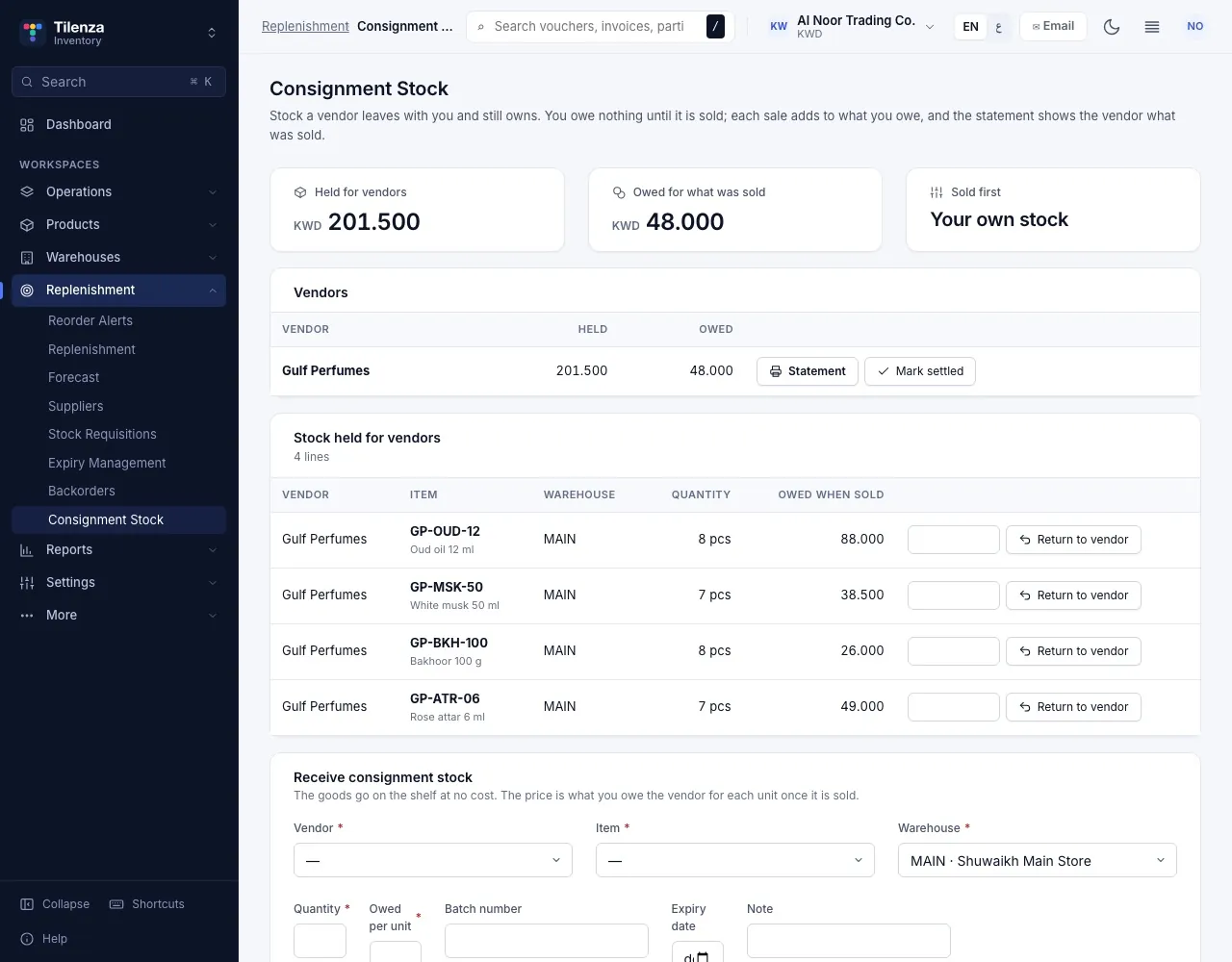
A vendor leaves goods with you and still owns them. You owe nothing until they are sold.
- Open Replenishment › Consignment Stock and press Switch on consignment stock.
- Under Receive consignment stock, choose the vendor, the item and the warehouse, and type the quantity and what you owe per unit once it is sold.
- Sell as usual. Your own stock goes first; each unit of the vendor's stock that is sold adds to what you owe.
- Statement prints what was sold in a period for the vendor. Create vendor bill turns what is owed into a bill where Finance is in use; otherwise Mark settled once you have paid.
- Return to vendor sends unsold goods back.
Consignment stock is counted in the quantity on hand and has no value in the stock valuation.
Stock below zero
Each warehouse has its own rule. Open Warehouses › Warehouses and choose under Stock below zero: never, at the till only, or always. At the till only lets the shop keep selling while the count is behind, and stops every other movement.
On Warehouses › Stock Levels, tick Below zero only to see what went negative and the movement that took it there.
Didn’t find what you need? Ask a person