Item names in any number of languages
Names and descriptions of items, units and categories in every language your customers and suppliers read, on the documents printed for them.
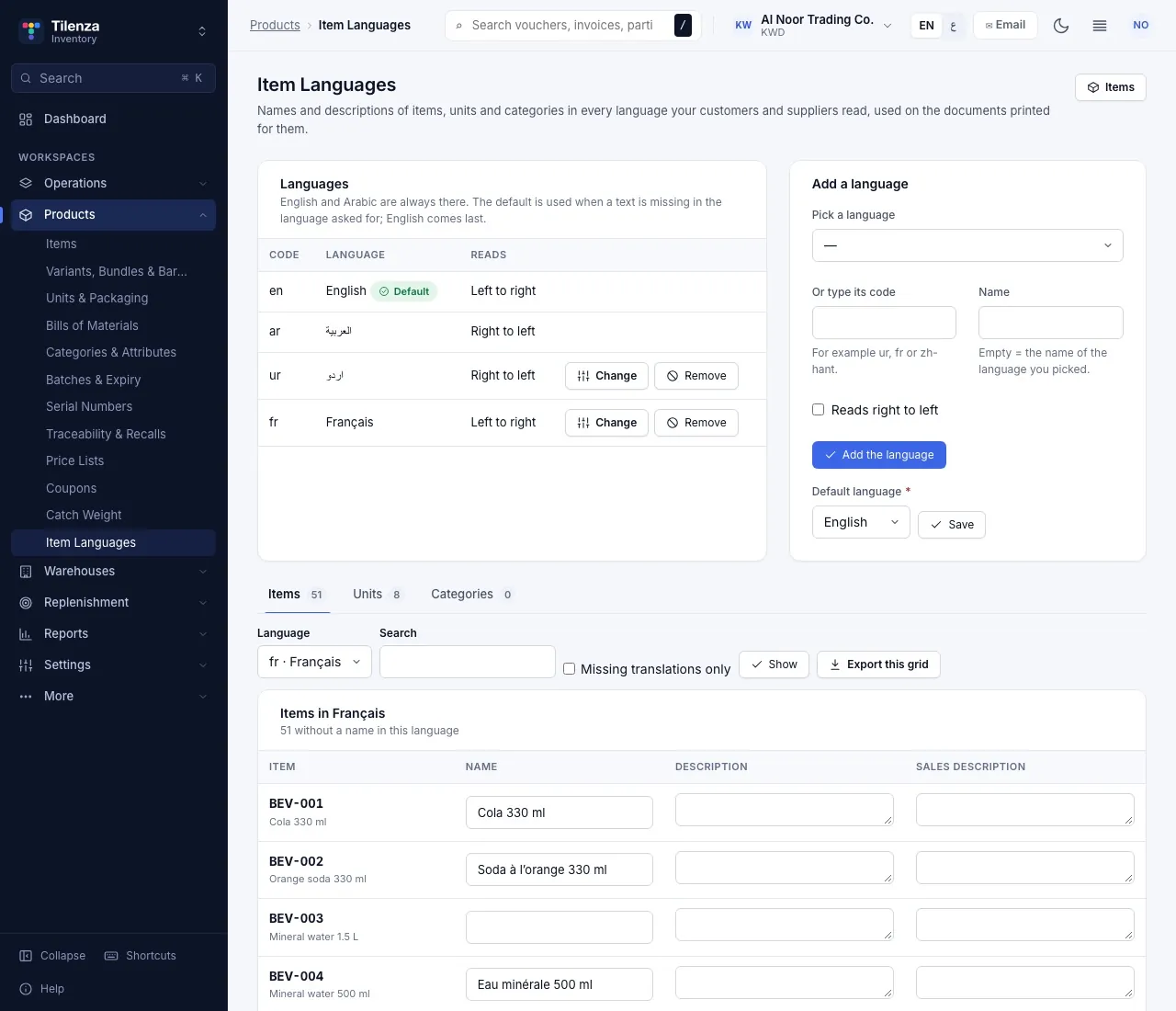
Keep the name and the descriptions of every item, unit and category in as many languages as your customers and suppliers read, and print their documents in their language. The English and Arabic names stay where they are.
Switch it on
Open Products › Item Languages and press Switch on item languages.
Add a language
- Under Add a language, pick a language from the list, or type its code, for example
ur,frorzh-hant. - Type a name if you want another one than the list gives.
- Tick Reads right to left for a language written from right to left. Languages such as Urdu, Persian and Hebrew are ticked for you.
- Press Add the language.
Default language is the language used when a text is missing in the language that was asked for. English comes last.
Fill many items fast
The grid shows one language at a time.
- Choose Items, Units or Categories, and the language.
- Type the name, the description and the sales description, and press Save these rows.
- Tick Missing translations only to see what still has no name in that language.
Export and import the grid
Export this grid downloads the rows of the language as a spreadsheet. Fill its columns and bring the file back under Import this grid. Empty cells change nothing, and a row whose code is not known is left out.
One item
Open an item and choose the tab Translations. Every language of the workspace has a row with the name, the description and the sales description.
Print in the language of a customer or a supplier
Under Language of a customer or a supplier, choose the customer or the supplier and the language.
- Print for the customer on a sales order and Print for the supplier on a purchase order print the order with the item names in that language.
- Delivery notes, pick lists and packing lists name the items in the customer's language.
- Item labels print in any language: choose it at the top of the label page.
A text that is missing falls back to the default language, then to English.
Didn’t find what you need? Ask a person