Settings and choice lists
The country the CRM follows, the lists people choose from and a switch for each part.
Two screens shape the CRM for your company: CRM Settings and Choice lists. Both are under Settings in the menu.
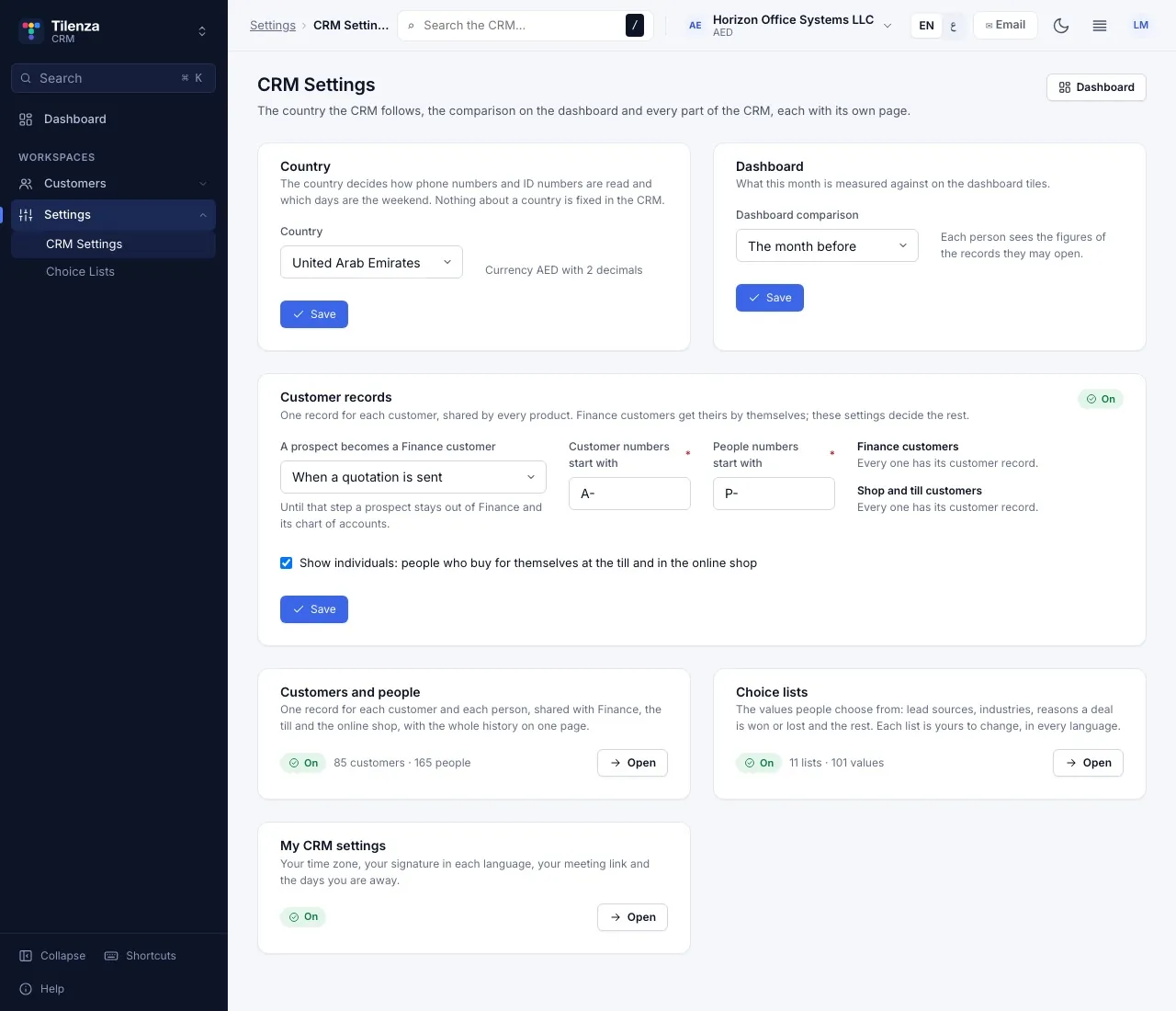
The country
Open CRM Settings and choose the country the workspace works in. The country decides how a phone number typed without a country code is read, what the ID number is called and which days are the weekend. Amounts follow the currency of the workspace, with its own number of decimals.
Nothing about a country is fixed in the CRM. A company with customers in several countries keeps each customer's own country, currency and phone number on the customer.
The dashboard comparison
Choose what this month is measured against on the dashboard: the month before, the same month last year, or nothing.
Choice lists
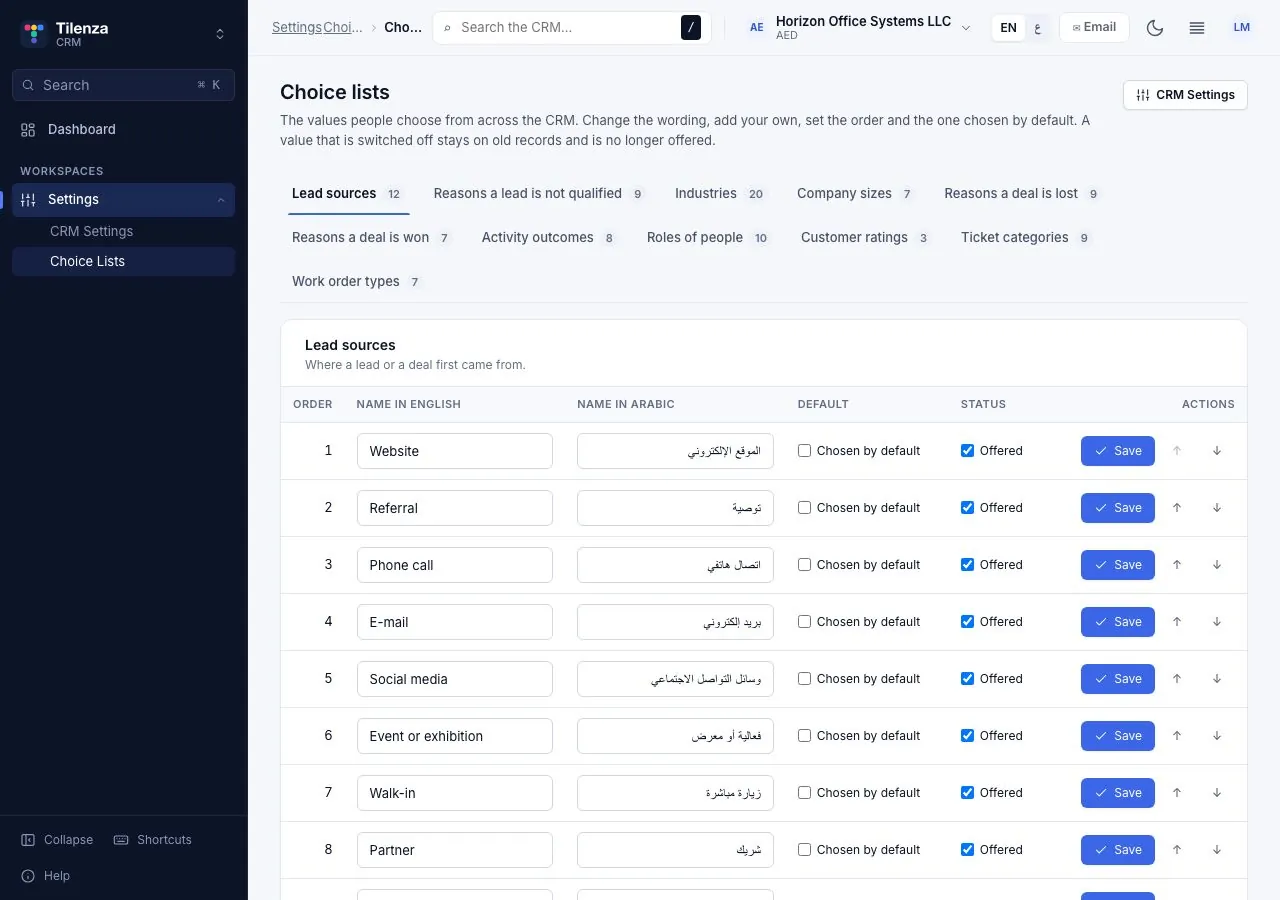
Open Choice lists. These are the values people choose from: lead sources, industries, company sizes, reasons a deal is won or lost, activity outcomes, roles of people, customer ratings, ticket categories and work order types.
- Pick a list from the tabs.
- Change a name in English or Arabic and press Save. People see the name in their own language.
- Tick Chosen by default on the value a new record should start with.
- Untick Offered to retire a value. It stays on old records and is no longer offered.
- Use the arrows to set the order, and Add a value for your own.
Customer records
The Customer records card in CRM Settings decides how customers are kept:
- The step at which a prospect becomes a customer in Finance. Until that step it stays out of Finance and its chart of accounts.
- Whether individuals are shown: people who buy for themselves at the till and in the online shop. Bring in shop and till customers makes a record for each of them once.
- What customer numbers and people numbers start with.
Finance customers get their record by themselves. If some are still without one, Make the records now finishes the job. See Customers.
Parts of the CRM
Each part of the CRM has its own card in CRM Settings, and a part that can be switched on or off carries its switch there. Switching a part on shows its screens in the menu; switching it off hides them and keeps the data. For your own preferences see My CRM settings.
Who sees what
Open Access rules from its card in CRM Settings. Everything on it starts switched off, and a person working alone never needs it. While record access is off, each person sees the customers, leads and deals they own, and a person with the right to see all sees all.
Switch Record access on when a second person joins and you want more than that:
- Who sees what by default sets the rule for each kind of record: private, open for everyone to read, or open for everyone to read and change. People follow their customer.
- Share on a customer, a lead or a deal opens that one record to a colleague, to read or to change.
- Sharing rules open every record that matches a condition, such as a country, to everyone who holds a role.
- Field rules hide a field from a role, or let the role read it without changing it. A hidden field leaves the screen, the exported file and the list of changes.
- Can this person see this record? answers yes or no for any person and record number, and says why.
Switch Field history on to keep every change to a customer, a person, a lead or a deal, with who made it and when. The History tab of a customer and the History button of a lead or a deal show it. Each row is sealed with the row before it and checked every night, so a change made behind the system's back is found. Opening an ID number is recorded too.
Signing in shows the rules of the whole workspace: the addresses people may sign in from, the second step, and single sign-on through the identity provider of your company (OpenID Connect) for the people of your e-mail domain.
Didn’t find what you need? Ask a person