Activities and the calendar
Calls, meetings and tasks with reminders, so every deal has a next step.
An activity is anything done or planned with a customer: a call, a meeting, a task, a visit. Activities are what keep a deal moving.
Activities are switched on in Activities and bookings. Until then nothing here shows in the menu.
What it is for
- Every lead, customer and deal shows what was done and what is planned, in order of time.
- Each person sees their own day: what is due, what is late and who they are meeting.
- A customer with nothing planned says so on its page, so none is forgotten.
Add a task in two steps
- Open My work.
- Type the task and press Enter. It is due today and it is yours.
For a call, a meeting or a visit, press Call, meeting or more: choose the type, the day and the time. A time puts it on the calendar; no time means the whole day.
My work
- Overdue, Today, This week, Later and Done today are counted at the top. Click one to see only that.
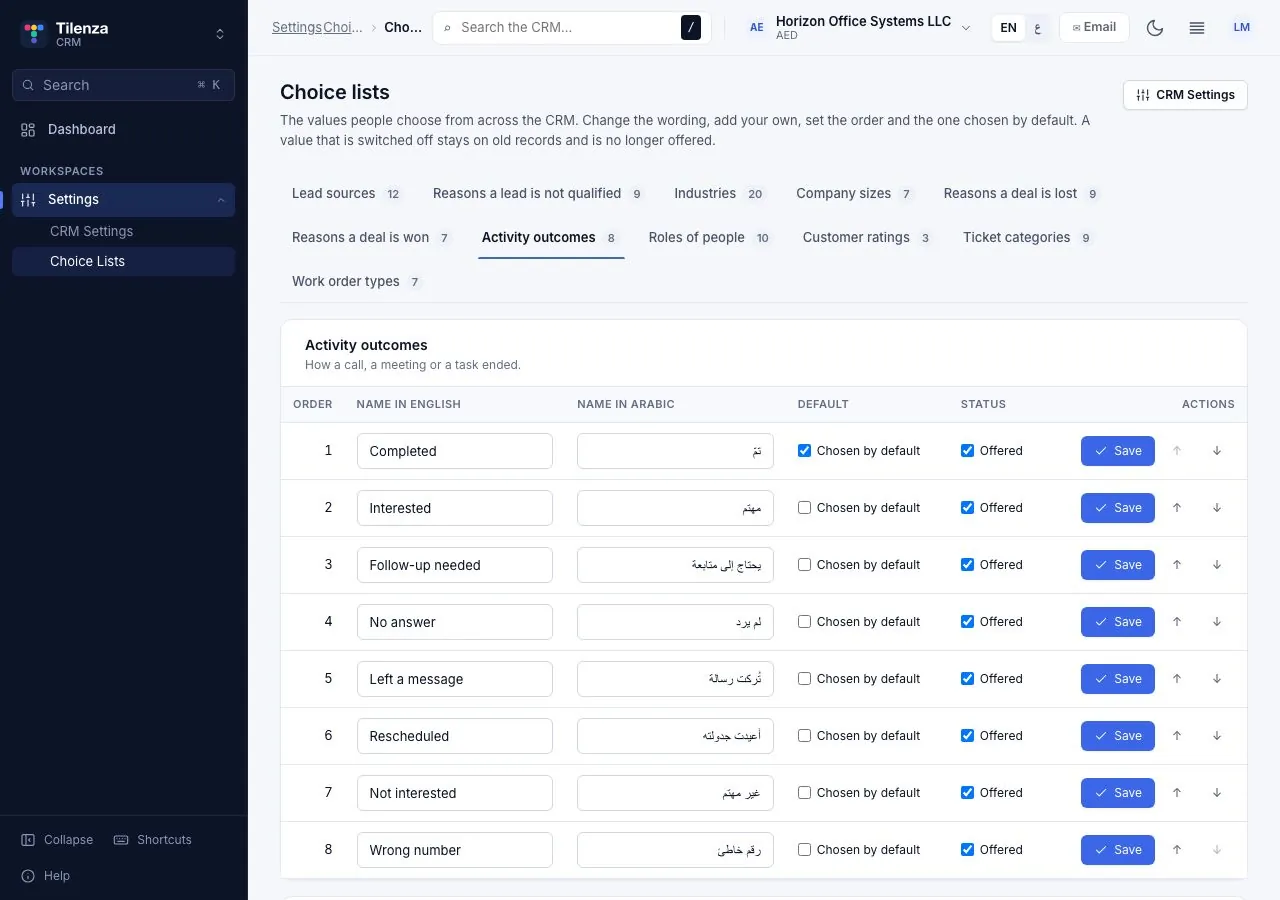
- Done asks how it ended. Some types need an answer; a note is always optional.
- Snooze moves an item to later today, tomorrow, the next working day or next week. Working days skip the weekend of your country and your company holidays.
- Board shows the same work in columns. Drag a card to another day, or to Done.
On a customer, a person or a lead
Each page has an Activities panel with what is open, what was done, and Schedule. A lead or a customer on a board shows its next activity: red when late, amber for today, green when planned.
What happens next
A type can schedule the next activity by itself. For example, when Send proposal is marked done, a Follow-up call is made three working days later for the same customer. A type can also only suggest what to do next, and nothing is made unless you choose it. Set this in Activity types.
A task can repeat every day, week, month or year. The next one is made when you finish the current one.
Reminders
A reminder reaches the person before a timed activity, and in the morning for a whole-day one. It shows in the app, and by e-mail or WhatsApp when chosen. A phone that allowed notifications also gets a push.
The calendar
The calendar shows the day, the week, the month or an agenda, in your own time zone.
- Click an empty time to add an activity. Drag an activity to move it.
- Approved leave from HR shows as Away. The kind of leave is never shown.
- Company holidays show on their day.
- See it in your own calendar app gives a private link for Google Calendar, Outlook or Apple Calendar. It only reads. Switch it off at any time.
Keys: T for today, the arrows for the period before and after, D, W, M and A for the views, N for a new activity.
Activity plans
A plan is a set of activities with dates and owners, such as welcoming a new customer. Make plans in Activity plans. On a customer page, choose Launch a plan: the preview lists every activity with its date, its owner and why that person, and nothing is saved until you launch it. Cancelling a plan cancels its open steps and keeps the finished ones.
By type
Activities by type counts the open work of each type, and the grid shows which records wait for which type.
Settings
- Activity types: names in both languages, colour, default owner, delay and what follows.
- The same page holds the reminder times, the channels and the limit of automatic follow-ups.
- Set your time zone in My CRM settings.
Didn’t find what you need? Ask a person