Leads: from the first enquiry to a customer
Where leads come from, how they are qualified and what happens when one becomes a customer.
A lead is someone who has shown interest and has not been qualified yet: a form filled in on your website, a business card from an exhibition, a name in an imported list, a chat or a phone call.
Leads is a part you switch on. If it is not in your menu, open Lead settings and tick Leads. Nothing changes for the team until you do.
What it is for
- Every enquiry lands in one list with its source, so nobody waits for a first call and no enquiry is lost in an inbox.
- Leads stay apart from customers until they are qualified, so the customer list holds only real relationships.
- The source is kept for good. Reports can always say which sources bring business.
The list and the board
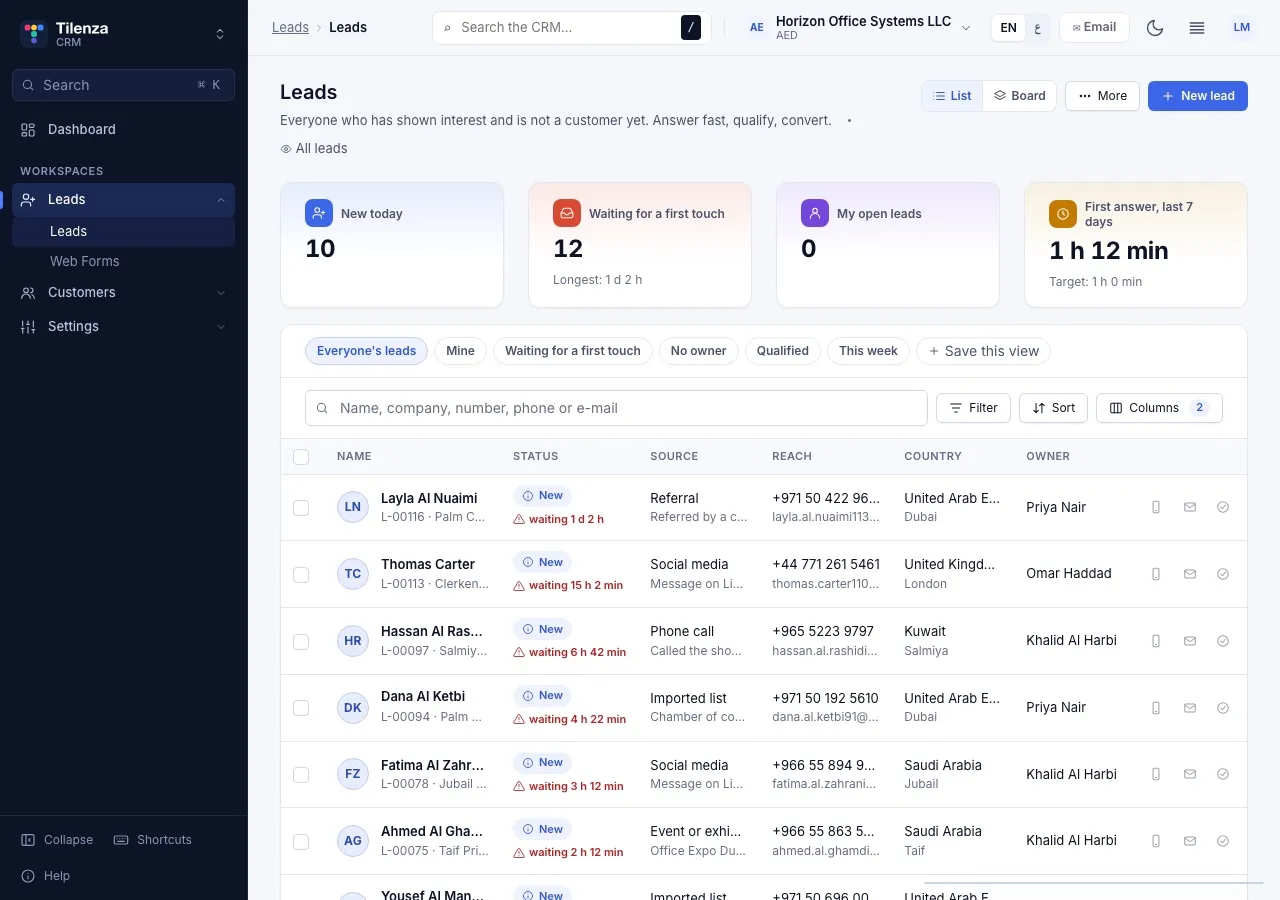
Open Leads. The list starts with the people who are still waiting for a first answer, the longest wait first. A waiting time turns red when it passes the target you set in Lead settings.
- The four figures at the top are New today, Waiting for a first touch, My open leads and how long a first answer took over the last seven days. Each one opens the leads behind it.
- Search by name, company, number, phone or e-mail. A phone number is found however it was written.
- Filter by status, source, owner, country, rating, form and tag, or show only possible duplicates. Save a set of filters as a view, for yourself or for the team.
- Choose which columns show, sort by up to three of them, and tick rows to assign, set a status, add a tag, export or delete several at once.
- Press Board to see the same leads as cards in columns: New, Working, Nurturing, Qualified, Not qualified and Converted. Drag a card to another column, or press M on a card and choose where it goes. On a phone the board shows one column at a time.
You see the leads you own. People allowed to see all leads see everyone's, and also the leads that have no owner yet.
Adding a lead
- By hand. Press New lead. A name or a company is enough. While you type, the panel beside the form shows anyone already in your records with the same e-mail, the same phone or a very similar name, so you do not keep one person twice.
- From a file. Open Import leads and choose a CSV file or an Excel workbook. Match the columns once; the match is remembered for the next file with the same columns. Every row is checked first: you see which rows are ready, which have something wrong and which are already in your records. Nothing is saved until you press Import, and the import then runs in the background.
- From a contact file. Under More, choose a contact file (.vcf) from your phone or your mail program. One card opens the form for you to check; several cards are added at once.
- From a business card. Open the card screen, take a photo of the card and type the details beside it. The photo is kept on the lead.
- From your website. A web form sends each submission straight into the list.
Reading a business card
- Open the card photo screen under Leads and take a photo of the front of the card. If the back has print too, add it as a second photo.
- With card reading on, the form fills itself in a few seconds: name, job title, company, phones, e-mail, website and address. A name or a company printed in a second script is kept as well.
- A field the AI was not sure about, and a phone number it could not put in international form, carries the word Check. Look at those first.
- Correct what is wrong and save. Nothing is saved until you do, and the possible duplicates are shown as they are when you type.
Card reading is off until someone who manages Leads settings turns it on under Read business cards with AI and accepts the notice there. The notice says what is sent, who reads it and what is kept. While it is off, the photo sits beside an empty form and you type the card. If the AI cannot run, for example when the limit for the month is reached, the form stays empty and says why.
Web forms
Open Web forms and start from Contact us or Request a demo. Both come in English and Arabic.
- Tick the fields you want, mark the ones a visitor must fill in and put them in order. The preview shows the form in each language as you change it.
- Write the consent wording. It is kept with every submission exactly as the visitor saw it, and shown on the lead.
- Each form has a link of its own that works on any phone. To put the form inside your own website, paste the two lines shown on the form's page and say which website may show it.
- A hidden field, a short minimum time and a limit for each address keep robots out. The page sets no cookie.
- You can ask visitors to confirm their e-mail address by a link, and send a notice to chosen colleagues for each submission.
Qualifying and converting
- Make the first contact and move the lead to Working. The lead page shows the one thing to do next.
- Tick the questions under Is it real business? and mark the lead as qualified. The questions are yours to change in Lead settings.
- A lead that will not go further is closed as Not qualified with a reason from your list. It can be reopened.
- Press Convert. Choose a new customer or one you already have, and a new person or one you already have. The notes, the card photos, the tags and the source move with it, and the lead is kept as converted so reports by source stay true. The customer's timeline shows the lead it came from.
Settings
- Lead settings hold the switches for Leads and Web forms, the time within which a new lead should be answered, the questions that qualify a lead and the prefix of lead numbers.
- Open Choice lists to set your Lead sources and the Reasons a lead is not qualified.
- Read Customers for what a lead becomes, and The pipeline for what happens to the deal.
- On the dashboard, New leads this week, Leads waiting for a first touch and Lead sources fill in as leads arrive.
Didn’t find what you need? Ask a person